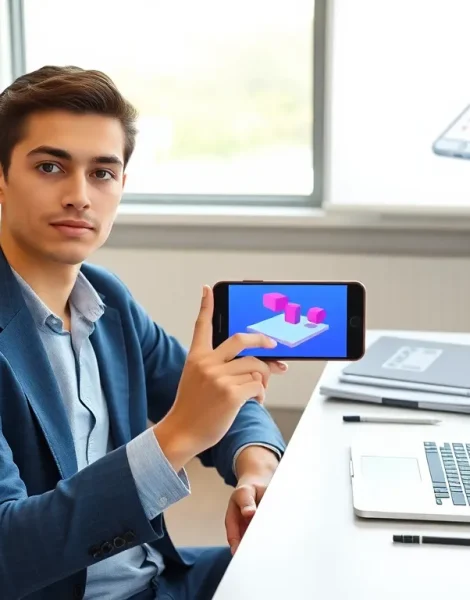
Learning how to augmented reality opens doors to one of the most exciting technologies available today. AR overlays digital content onto the real world, creating interactive experiences through smartphones, tablets, and specialized headsets. Businesses use it to showcase products. Educators use it to bring lessons to life. Game developers use it to blur the line between virtual and physical spaces.
This guide breaks down the fundamentals of augmented reality for beginners. It covers what AR is, which tools to use, and how to build a first project from scratch. Whether someone wants to create an AR app, experiment with filters, or understand the technology behind popular applications, this article provides a clear starting point.
Table of Contents
ToggleKey Takeaways
- Learning how to augmented reality starts with understanding that AR overlays digital content onto the real world using sensors, processors, and displays.
- Unity with AR Foundation is the most accessible platform for beginners to build their first augmented reality project across iOS and Android.
- AR experiences come in two types: marker-based (triggered by specific images) and markerless (using GPS or surface detection).
- Testing augmented reality on physical devices is essential—AR tracking works best on textured surfaces with adequate lighting.
- Common AR challenges include poor tracking, device compatibility, and large file sizes, but proactive optimization solves most issues.
- Clear onboarding and visual hints dramatically improve user experience for first-time AR app users.
What Is Augmented Reality and How Does It Work
Augmented reality blends digital elements with the physical environment in real time. Unlike virtual reality, which replaces the real world entirely, AR adds layers of information on top of what users already see. Think of Pokémon GO, where digital creatures appear on sidewalks and in parks. That’s augmented reality in action.
AR systems rely on three core components: sensors, processors, and displays. Sensors (like cameras and accelerometers) capture information about the user’s environment. Processors analyze this data and determine where to place digital objects. Displays, whether phone screens, smart glasses, or headsets, show the final result.
There are two main types of augmented reality experiences:
- Marker-based AR: The system recognizes a specific image or pattern (a QR code or printed target) and triggers digital content.
- Markerless AR: The system uses GPS, depth sensors, or surface detection to place objects without needing a predefined marker.
Modern smartphones handle augmented reality well because they contain all necessary components. Apple’s ARKit and Google’s ARCore provide the software frameworks that make AR accessible to millions of devices. These platforms track surfaces, detect lighting conditions, and anchor virtual objects to real-world positions.
Understanding how augmented reality works helps creators make better decisions about which approach fits their project. A retail app showing furniture in a living room needs markerless AR. An interactive museum exhibit might work better with marker-based triggers.
Essential Tools and Platforms for Creating AR Experiences
Building augmented reality experiences requires the right combination of development platforms, 3D software, and testing devices. Here’s what beginners should know about each category.
Development Platforms
Unity stands as the most popular choice for AR development. It supports ARKit, ARCore, and various headset platforms through a single codebase. Unity offers a free tier for individuals and small teams, making it accessible for learners.
Unreal Engine provides another powerful option, especially for projects requiring high-quality graphics. It uses Blueprints visual scripting, which helps non-programmers create interactive experiences.
Spark AR and Lens Studio focus specifically on social media filters for Instagram and Snapchat. These platforms offer drag-and-drop interfaces that require no coding knowledge.
8th Wall enables web-based augmented reality that works directly in browsers without app downloads. This approach lowers barriers for users who don’t want to install anything.
3D Modeling and Asset Creation
AR experiences need 3D objects to display. Blender offers professional-grade 3D modeling for free. Sketchfab and Poly Pizza provide libraries of ready-made 3D assets that creators can use immediately.
For simpler projects, Canva and Adobe Aero allow users to create AR experiences using 2D graphics and basic animations without deep technical skills.
Hardware Requirements
Testing augmented reality requires compatible devices. Most iPhones from the iPhone 6s onward support ARKit. Android devices need ARCore support, which covers most mid-range and flagship phones released after 2018.
For headset-based AR, Microsoft HoloLens 2 and Magic Leap represent the professional standard, though their high costs put them out of reach for most beginners.
Step-by-Step Guide to Building Your First AR Project
Creating a first augmented reality project doesn’t require advanced programming skills. This walkthrough uses Unity with AR Foundation, which works across iOS and Android devices.
Step 1: Set Up the Development Environment
Download and install Unity Hub. Create a new 3D project and add the AR Foundation package through the Package Manager. Also install either ARKit XR Plugin (for iOS) or ARCore XR Plugin (for Android).
Configure build settings for the target platform. iOS requires a Mac with Xcode. Android needs the Android SDK installed.
Step 2: Configure the AR Session
Delete the default Main Camera from the scene. Add an AR Session and AR Session Origin from the GameObject menu under XR. The AR Session Origin contains an AR Camera that replaces the standard camera.
Add an AR Plane Manager component to the AR Session Origin. This component detects horizontal and vertical surfaces in the real world.
Step 3: Create or Import a 3D Model
Find a simple 3D model in .fbx or .glb format. Import it into Unity’s Assets folder. Drag the model into the scene and adjust its scale. AR objects often need to be much smaller than they appear in the editor.
Step 4: Add Placement Logic
Create a C# script that raycasts from screen touches to detected planes. When the user taps on a valid surface, instantiate the 3D model at that position. Unity’s AR Foundation documentation provides sample scripts for this exact purpose.
Step 5: Build and Test
Connect a physical device and build the application. Test in different lighting conditions and on various surfaces. AR tracking works best with textured surfaces and adequate lighting.
This basic augmented reality project demonstrates core concepts. From here, creators can add animations, interactions, and multiple objects to expand the experience.
Common Challenges and How to Overcome Them
Every beginner learning how to augmented reality will encounter obstacles. Knowing these challenges ahead of time saves frustration and speeds up the learning process.
Poor Tracking Performance
AR tracking fails on reflective surfaces, plain white walls, and in low-light conditions. The solution involves testing in varied environments and guiding users toward optimal conditions through on-screen instructions. Adding a visual indicator showing tracking quality helps users understand when to move to a better location.
Device Compatibility Issues
Not all smartphones support augmented reality features. Applications should check for AR capability at launch and display a clear message if the device doesn’t meet requirements. Testing on multiple devices during development catches compatibility problems early.
Large File Sizes
3D models and textures increase app size quickly. Optimizing assets through polygon reduction and texture compression keeps downloads manageable. Tools like Meshlab reduce polygon counts without visible quality loss. Using compressed texture formats designed for mobile devices cuts file sizes further.
User Experience Confusion
First-time AR users often don’t know how to interact with the experience. Clear onboarding screens, animated tutorials, and visual hints improve understanding. Showing users exactly where to point their camera and how to place objects prevents frustration.
Battery Drain
Augmented reality uses cameras, GPS, and processors continuously, which drains batteries fast. Developers can reduce power consumption by pausing AR tracking when the app enters the background and lowering frame rates when high precision isn’t needed.
These challenges appear in almost every AR project. Addressing them proactively leads to better user experiences and more polished applications.